



Little Sponges Implementation Guide through ClassLink

Welcome to Little Sponges!  This implementation guide will provide you with essential information on how to navigate and utilize our program effectively. In this guide, we’ll cover the basics, including how to access different resources within our program, and we’ll also provide some troubleshooting guidance. Let’s get started!

1. ClassLink QuickCards for Teachers

ClassLink QuickCards are a user-friendly way for young children to access ClassLink and the Little Sponges programming in the classroom and at home. Follow this article on managing QuickCards for students in your classes.

2. Adding Little Sponges to Favorites in ClassLink

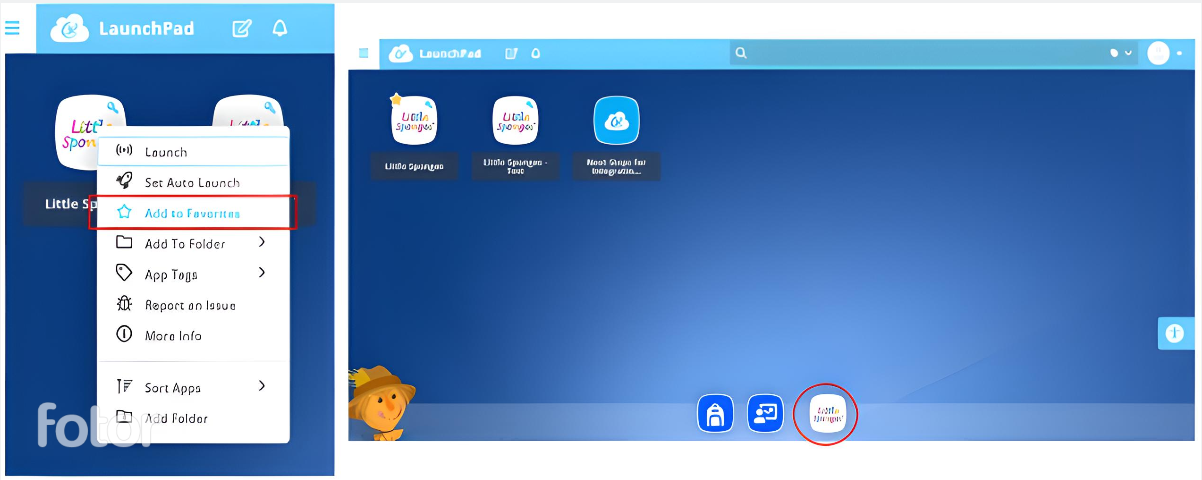
Adding Little Sponges to your favorites in ClassLink and encouraging your students to do the same makes it easy to access the program. Here’s how:

  • Right-click over the Little Sponges icon.
  • Select “Add to Favorites.”
  • This will ensure that the Little Sponges icon is always available at the bottom of your ClassLink dashboard.

3. The Resume Button

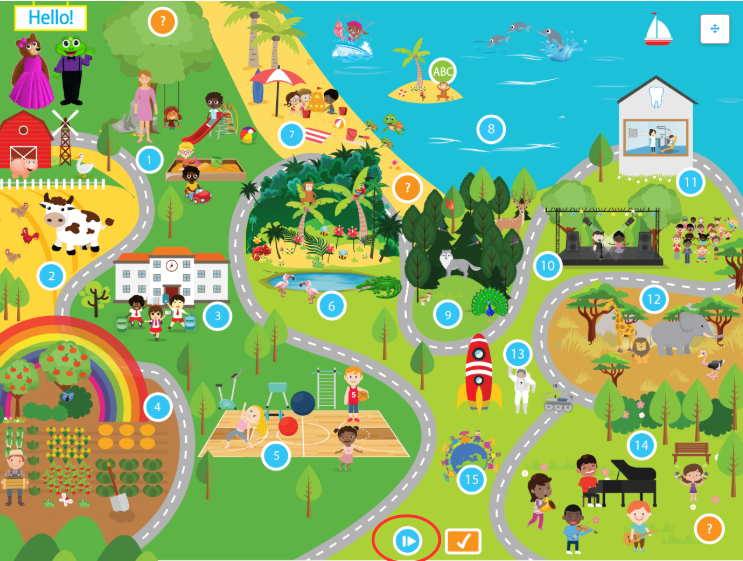
If you want to continue with the lesson from where you left off during your last Little Sponges session, you can use the Resume button. Here’s how to access it:

  • Click on the Resume icon (at the bottom of the Adventure Map). 
  • You’ll see the page that shows the last lesson that you were on. Click on the RESUME button and it’ll take you to that lesson.

4. The Gradebook

The Gradebook is a valuable tool for tracking students’ progress. Follow these steps to access it:

  • While on the English FI Adventure Map, close the map by clicking on the ‘x’ at the top right corner.
  • Hover over the Progress Data menu and click on “Educator Gradebook”. 
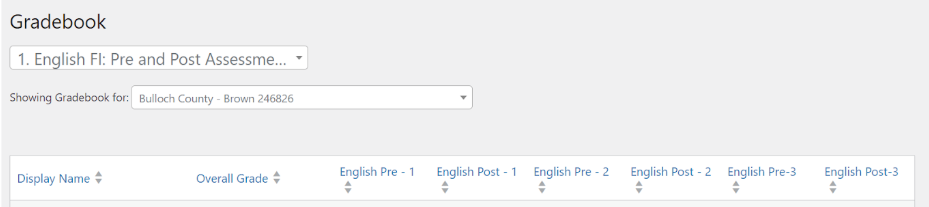
  • You will be directed to the Gradebook page where you can manage your gradebooks and track student progress.
  • To choose your class, use the “Showing Gradebook for” menu.
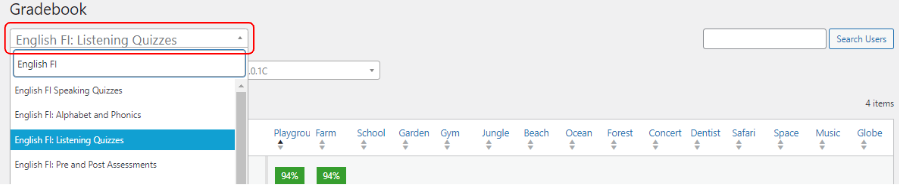
  • Type English FI and select the specific gradebook you’d like to see (e.g., Pre and Post assessments, Listening quizzes, Reading quizzes, etc).
  • You can also print the gradebooks by scrolling down to the bottom of the page and clicking “Export Gradebook Component Grades.”

The Gradebook is a powerful tool to monitor and assess your students’ performance within the Little Sponges program.

Troubleshooting Guide for Technical Issues

If you encounter any technical issues while trying to access or log in to our program, please follow the options below to resolve the problem.

Option 1: Close all tabs/browser

iPads: Close Tabs That Are Running the Background

  1. Close all the tabs that are running in the background by double-clicking on the home button and swiping up each tab.
  2. Open ClassLink or Clever and click on the Little Sponges icon again.

Chromebooks, computers, laptops: Simple Browser Rese

  1. Close your browser (Chrome or Safari) completely.
  2. Reopen it.
  3. Log into Little Sponges again via Clever or ClassLink.

Option 2:

Clear Cache and Cookies in Chrome Browser

  1. On your computer, open Chrome.
  2. At the top right, click on the three dots.
  3. Click More Tools. Clear browsing data.
  4. At the top, choose a time range. To delete everything, select All time.
  5. Next to “Cookies and other site data” and “Cached images and files,” check the boxes.
  6. Click Clear data.

Clear Cache and Cookies in Safari Browser

  1. Open the Settings app, then select Safari.
  2. Scroll down, then select Clear History and Website Data.
  3. Tap Clear History and Data to confirm.

Option 3: Delete Cache and Cookies 2.0

If the issue persists, follow these steps:

  1. Click the three dots in the upper right corner of the screen.
  2. Go to Settings.
  3. Navigate to Privacy and Security on the left-hand side menu.
  4. Click Site settings.
  5. Choose View permissions and data stored across sites.
  6. Search for “little sponges”
  7. Click the trash icon next to “little sponges”
  8. Click Clear.
  9. Log out of ClassLink/Clever and log back in. Try launching Little Sponges again.

For more information about the implementation guide, you can read the full details here.